External objects are a fundamental part of Max/MSP. They are routines that users and developers have created to either do something new, to do something that is available in other software but not in Max, or to do something simple and that one could do otherwise in Max, but one can do it more easily and/or more quickly with a custom object.
However, they can be confusing.
To cover:
ReadExternals: Extending the Capabilities of Max from Max45GettingStarted.pdf (in Documentation).
What they are - why they are
A piece of code is like a menu - a programme just sits around waiting for the user to do something. The user tells it to do something: "do this". The first word is a command - 'do' and the second is an argument - it specifies what it is the user wants the programme to 'do'. The programme looks for a specification for the argument 'this'. If it finds it, it 'does' it, if it can't find it, it generates an error, or the programme will crash. Everything you do in any programme follows this pattern without exception. All programmes have basic sets of commands and arguments that you can use. Some programmes allow for users to import or develop their own commands so that their own (or others'), custom ideas and procedures can be used. In the case of Max/MSP these are called 'externals' and they are called 'objects' not commands.
Where they are placed in the file structure
Max includes a number of commands, such as metro within the programme itself. However, there are a number of 'intermediate' external commands which you can see for yourself, kept within the Max Application folder, within a folder called 'Cycling '74 folder alias', or possibly just 'Cycling '74 folder'. Within this folder is another folder called 'externals' and this is where these 'intermediate' externals are kept. Have a look - you may recognise some of them.
The File Preferences Patch
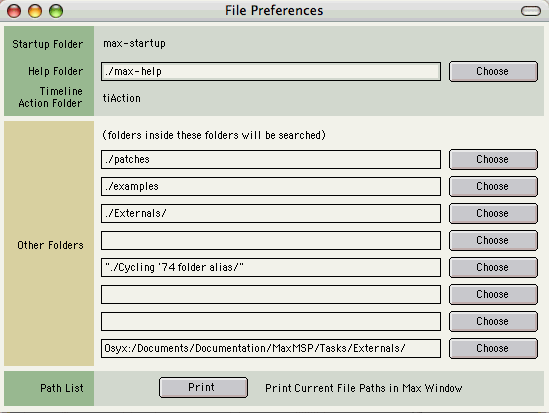
This can be found in [Options/File Preferences...]
This is where you can tell Max where you want it to look for various items, including external objects. You should see that a number of places are already set. Don't alter the ones in the upper sector, or the ones set to ./patches or ./examples or "./Cycling '74 folder alias" (unless you want to disable a lot of functionality!). You may, however, set your own folders to be used here. In the task below, you'll be asked to create you own folder, find an external to use and make it work using this preferences box.
NB the file preferences set only become functional after restarting Max.
Duplicated Externals
Sometimes you may find that you have placed an external you're interested in in a particular folder, chosen it in the search paths (see above) and when you try and use it within Max, you get an improper object (see below). Check the Max window and you will see an error message, saying either that it can't find the object, in which case your object is not in a recognisable path or the object is not compatible with your version of Max or platform, or you'll get a message saying that Max can't 'fragload' the particular object. This means that the programme had identified two versions of the same object and doesn't know which to load. Somewhere in your system you have another version of the same object (it has the same name) and you need to find it. Alternatively, if it is the same object, then just delete your version and use the one that's already there!
Compatibility (Mac OS 9 (Classic), Mac OS X, Windows XP)
Complete submission with demo, sound files, resources, etc.
This also has ramifications concerning:
File preferences
Error messages
Object Naming
The Task
Part One
Create a folder somewhere on the hard disc, or on a memory stick... Call it 'MyMaxExternals' or something like that.
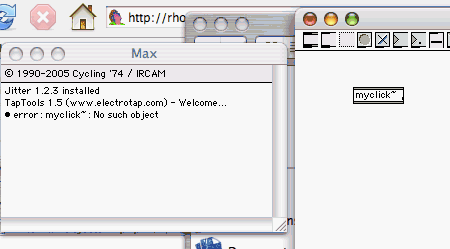
In Max/MSP open a new patch and create a new object called myclick~. It will be an improper object and look like this:
Check that the Max window has an error (it should have)...
Download this object, unzip it - it should be called myclick~ - and put it in the folder you've just created. You may encounter an error when the file is unzipped. Don't worry about this - it seems to work without problems.
Make a new patch and save it as something like 'click_thing' - anything but myclick~ itself. I would advise saving as a text file, in which case you should add the suffix '.txt' to the patch name. Save the file into the same folder as the object you've just downloaded.
In the patch, create a new object called myclick~. This time, the object should be proper and there should be no errors (check the Max window again).
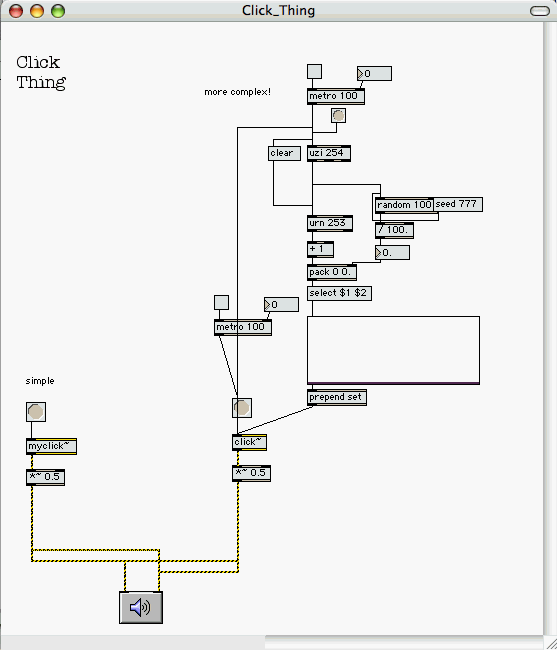
Make a small patch making use of the patch. It can be very straightforward or more complex:
.
NB the white box to the right of the screen is a multislider object with 254 sliders.
You don't have to do what I've done above - it's just a starting point. Try it out and work out what it does. Don't do exactly the same thing.
Part Two
From the internet, for instance from the Max Object Database, choose an external that interests you (at least a bit) and that we haven't already looked at in the course.
Make sure you check the compatibility of the object with your operating system.
Download the external and create a patch that utilises the external - do this in the same way as you did with the myclick~ object - store the external in a folder (it can be the same as the one above) and create the patch there too. Check that the object is proper and that there are no error messages in the Max window. Check that the object within the patch creates a sound! If there seems to be a problem try another object.
(I found a nice object called kastro~ that seems to work well.)
Annotate the patch giving full details of how the patch works, who wrote the external and where you got it. This must not be any help file that comes with the object.
Ensure that your patch is fully functional and that all necessary materials for demonstration purposes are there, including a sound file (modestly sized) if necessary (and please, autoload it into the patch!
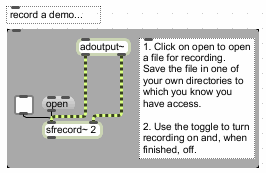
If appropriate, make a demo recording of your patch working. Please keep the size down to a minimum (maximum duration approximately 10 seconds. Use adoutput~ for the easiest way of doing this:
Finally
Zip or Stuff your patches, demos, etc. into one file called your_student_number_"ExObjects" (e.g. 0504335_ExObjects.zip or 0504335_ExObjects.sit), include a readme with your name and student number and, if necessary, how to use or just open the patch, and submit the whole thing here.
You might also be interested in:
XCode (creating Max Externals)
The Projects
The projects and tasks are designed to help you through the various courses and materials that you'll have to deal with, and also to provide an active and practical element to what could otherwise become a rather dry and technical exercise. Tasks are small exercises - you may be asked to complete one or two per week. Projects are larger and carry a higher percentage of the mark. We will undertake two, three, four or more projects and tasks. The final project is usually an individual choice project, and will be worth significantly more than the others in terms of percentages in your portfolio. We will usually try to set aside a time to perform the projects in a public setting.